Cash Flow Forecast Added to Autobooks Capital
Capital-eligible small business customers can now see a 30-day cash flow forecast, model the impact of working capital, and act on their offer without leaving their Autobooks dashboard.
Signal Feed: Proactive Portfolio Intelligence in the Autobooks Hub
The Autobooks Hub now surfaces notable transaction activity and trends across your small business portfolio and gives your team a prescribed next step for each one.
Released: June 4, 2026
Signal Feed is a new view in the Autobooks Hub that identifies notable transaction activity and trends across your small business portfolio and categorizes each one by type. Your FI admins and front line bankers can see which businesses have activity worth their attention, and what to do about it, without reviewing individual accounts themselves. Signal Feed replaces the previous Deposit Signals feature.
What's new
The Autobooks Hub now includes Signal Feed, a dedicated view in the left navigation that shows financial institutions which of their small business customers have activity worth noting, how each signal is categorized, and what action to take next.
The Hub pulls transaction data daily from your core banking system. Signal Feed processes that data and presents it in a table with the following columns:
-
When — the date and time the transaction or trend was identified.
-
SMB — the small business name. Click to open that business’s full detail record.
-
Activity — what the Hub identified as notable.
-
Action — the prescribed next step your team can take based on the type of activity.
-
Signal — how the activity is categorized: Opportunity, Risk, Notable, or Milestone.
-
Category — the general topic the activity and signal relate to.
-
Counterparty — if the activity involves a third party, this column identifies it by name when the core data makes it recognizable, such as a known payment processor or competing application. When the third party is not identifiable from the core data, a generic label appears instead.
-
Amount — the dollar amount of the transaction or the total for a trend.
-
Industry — the business’s industry classification based on NAICS code.
-
SMB ID — the Autobooks customer identifier.
Signal Feed is visible in the left navigation to FI Admin and Read-only users. Clicking a business name opens the SMB Detail View.
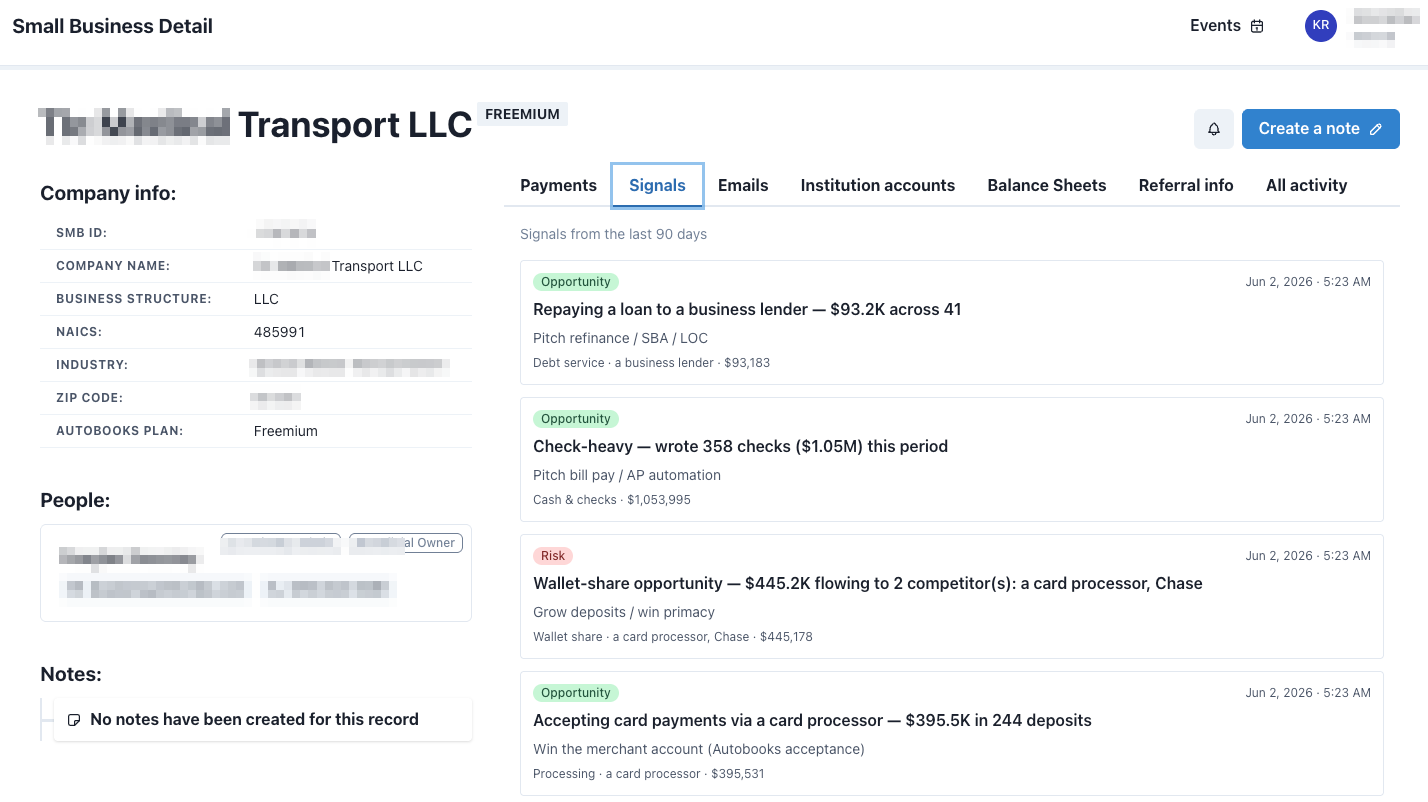
Signals are also listed inside the SMB Detail View for all Hub user types. The Detail View shows the rolling 90-day signal history for each individual business, including the specific activity behind each signal.
No configuration is required. Signal Feed is available automatically to eligible financial institutions and replaces the previous Deposit Signals feature
Why does it matter?
Your team cannot review every account every week. And the activity that matters, a business repaying a loan to an outside lender, moving significant volume through a competing processor, writing hundreds of checks that could be automated, does not announce itself.
Signal Feed surfaces that activity without your team having to dig through transaction data themselves. FI admins and front line bankers can see which businesses have notable activity, how each signal is categorized, and what specific action to take next. Each signal surfaces a prescribed next step, helping your team not only prioritize your outreach but also focus on the opportunity at hand.
Who has access?
Signal Feed is available to all financial institutions using the Autobooks Hub. The Signal Feed table in the left navigation is visible to FI Admin and Read-only users. The Signals list inside the SMB Detail View is available to all Hub user types.
Frequently asked questions
Q: Does Signal Feed replace Deposit Signals?
A: Yes. Signal Feed replaces the previous Deposit Signals feature. It covers a broader set of activity types and includes a prescribed next step for each signal.
Q: What types of signals will my team see?
A: Signal types are Opportunity, Risk, Notable, and Milestone. Each signal includes a category describing the general topic the activity relates to and, when identifiable from the core data, the name of any third-party counterparty involved.
Q: Does my team need to do anything to enable Signal Feed?
A: No. Signal Feed activates automatically and requires no configuration by the financial institution.
Q: Who in the Hub can see Signal Feed?
A: The Signal Feed table in the left navigation is visible to FI Admin and Read-only users. The Signals list inside the SMB Detail View is visible to all Hub user types.
Q: How far back does the signal history go in the SMB Detail View?
A: The SMB Detail View shows signals for the rolling 90 days.
Resources: TBD