April 8, 2024 | Sales Tax with Tap to Pay on iPhone
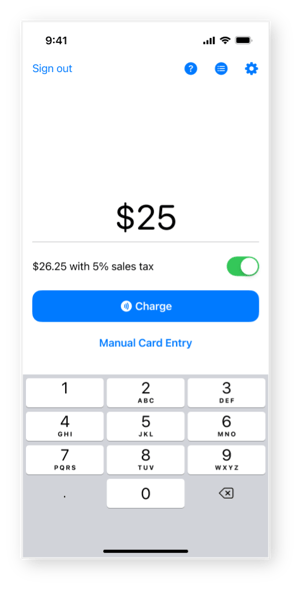
Thanks to the addition of an automated sales tax setting on Tap to Pay on iPhone, merchants can now automatically add a sales tax to their contactless payment transactions.
Tap to Pay on iPhone now includes sales tax functionality, allowing merchants a quick and convenient way to add a sales tax to transactions, automatically.
Note: This update is only available through digital banking providers that have downloaded and deployed the most recent SDK from Autobooks. Speak with your digital banking provider to learn what SDK version they have deployed. Financial institutions must also update the app from their end.
For users to see and use the sales tax feature, it must first be activated inside the Tap to Pay on iPhone settings. See below for directions.
A few more details about this new feature.
To activate sales tax functionality:
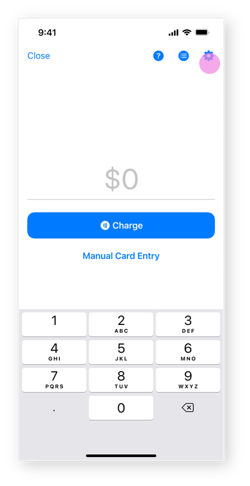
- Go to Settings inside Tap to Pay on iPhone.
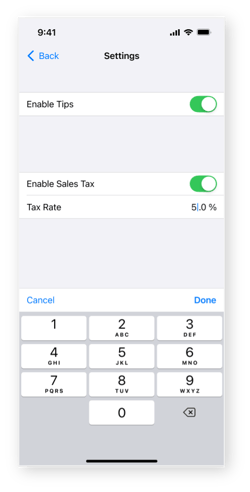
- Turn on Sales Tax.
- In the Tax field, enter the specific tax rate for your area, as a percentage.
To automatically add sales tax to a transaction:
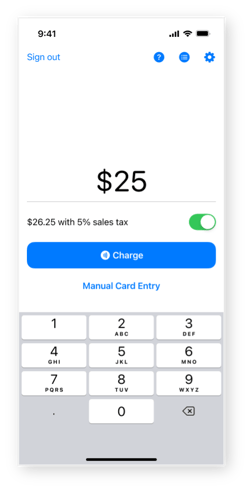
- Open Tap to Pay on iPhone.
- Enter the amount to be paid. Directly below you will see an updated total, reflecting the sales tax that has been automatically added to the transaction.
- Click Charge, then complete the transaction as usual by presenting your iPhone to the customer.
To view tax amounts inside Tap to Pay on iPhone:
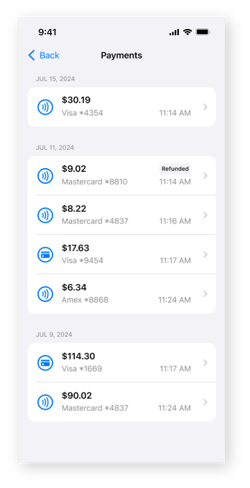
- Go to Payments.
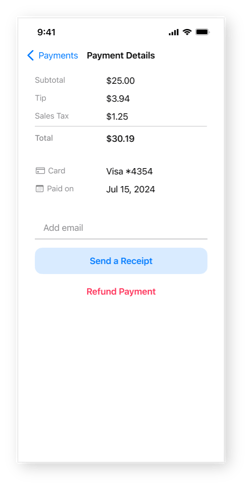
- Select a specific payment from the Payment Details list.
- Locate the line-item labelled Sales Tax to view the specific tax amount.