What's new
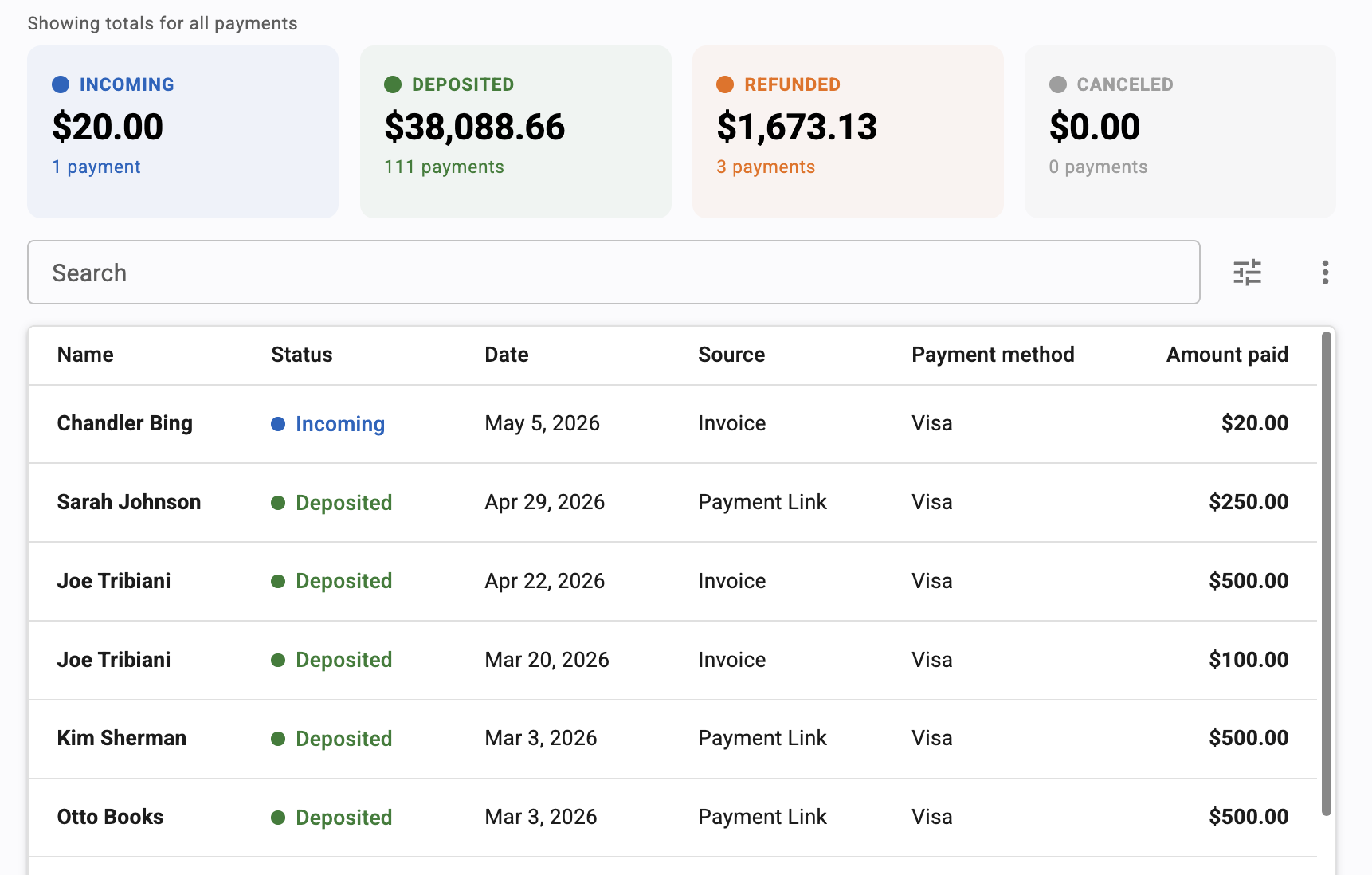
Autobooks has added a Payments tab to the main navigation. It serves as a single hub for all payment activity across every payment method: Invoices, Payment Link, Checkout Pages, and Tap to Pay.
Payment statuses have also been updated to better reflect the timing of payment deposits. A status of Incoming means the payment is in process. A status of Deposited means the funds have settled into the business' checking account. Every payment entry shows a status timeline with an expected deposit date.
For financial institutions on Autobooks Plus, Pro, or Smart Checking, Tap to Pay transactions are now visible along side of other payment types.
Existing Payment pages within Invoicing, Payment Link, and Checkout Pages remain unchanged. The new Payments page adds a consolidated view alongside them.
Why it matters
When a payment is submitted, small businesses want to know what happened and when to expect their money. And if a small businesses uses multiple Autobooks payment tools, it becomes much easier to track when they get paid with a unified payment list as reference.
The updated status labels and deposit date information provide small businesses with accurate expectations from the moment a payment is initiated along with the information they need to manage cash flow.
For financial institutions, a clearer, more complete payments experience helps reinforce the value of Autobooks within the business checking account. When small businesses can quickly find answers to payment questions within their banking experience, they can move forward with greater ease and confidence. That helps keep more financial activity connected to the bank, creating a more seamless experience for everyone involved.
How it works
The Payments tab is accessible from the main navigation in Autobooks. It automatically aggregates activity from all connected payment tools and displays a unified transaction list. No configuration is required by financial institutions.
Each payment entry displays the payment date, expected deposit date, payment method, and current status. Filtering is available to narrow the view by payment tool, status, and time period.
Clicking on a payment transaction with the list will display a detailed payment view: a payment status timeline, the payment method details, and the action buttons to resend a payment receipt and to Refund or Cancel a payment (depending on the payment status).
Availability
Available to all financial institutions and all small businesses using Autobooks payment tools. Tap to Pay transaction details are visible to small businesses at financial institutions offering Autobooks Plus, Pro, or Smart Checking.