In short
Signal, the tool that flags notable small business transaction activity in the Autobooks Hub, now does more than list one signal at a time. It rolls activity up by category, shows which outside companies are pulling business away, and hands your team a list of businesses to reach out to.
What's new?
Signal in the Autobooks Hub has grown from a single feed into four views, giving your team more ways to see opportunity and risk across your small business portfolio and act on it.
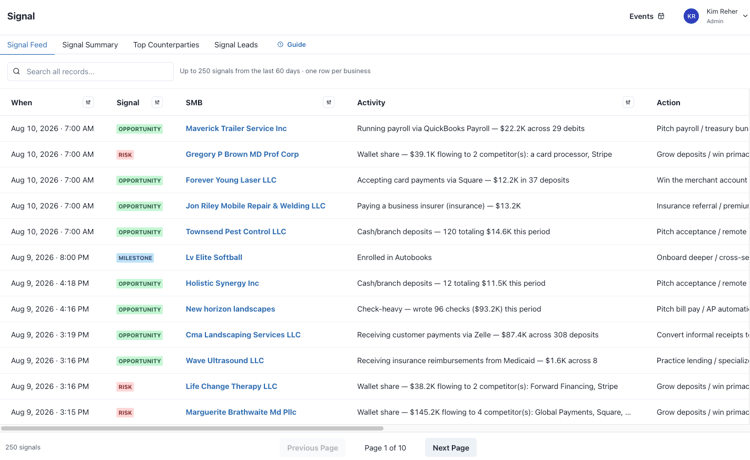
Signal Feed, the original view, remains the default and now includes a search box and pagination, showing 25 rows per page instead of all 250 at once. The three new views are Signal Summary, Top Counterparties, and Signal Leads.
Why does it matter?
Your team can't review every account every week. And the activity that matters, a customer moving deposits to a competitor, repaying a loan somewhere else, running payroll through a third-party tool, doesn't announce itself.
Signal points your team toward where that opportunity and risk actually sit before your team reaches out, and turns it into a ready-to-use outreach list instead of a spreadsheet someone has to build by hand.
How does it work?
Signal lives on the left navigation in the Autobooks Hub and is visible to FI Admin and Read-only users. It has four sub-tabs.
Signal Feed is the default view: the latest signal for each business, newest first, with a search box and pagination at 25 rows per page, replacing the previous single page of 250 rows.
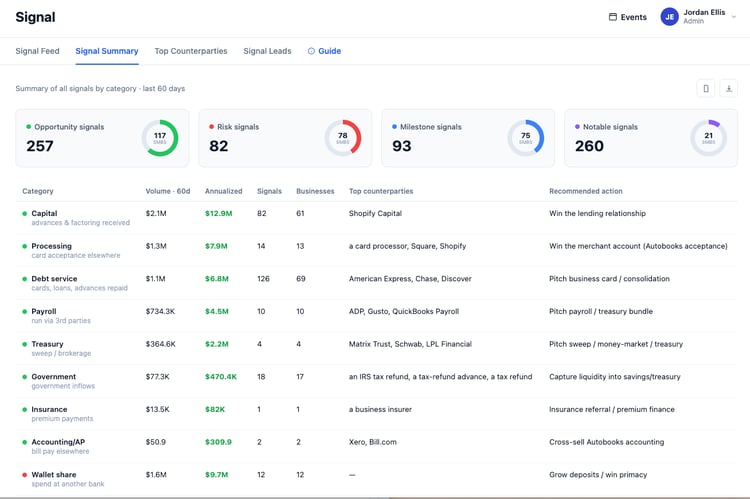
Signal Summary rolls the last 60 days of signals up by category, one row per category across 21 categories, grouped by signal type (Opportunity, Risk, Milestone, Notable) and sorted by volume within each group. Four cards at the top count signals by type and show what share of your customers each type reaches. Columns include category, 60-day volume, an annualized estimate, signal count, business count, top counterparties, and a recommended action.
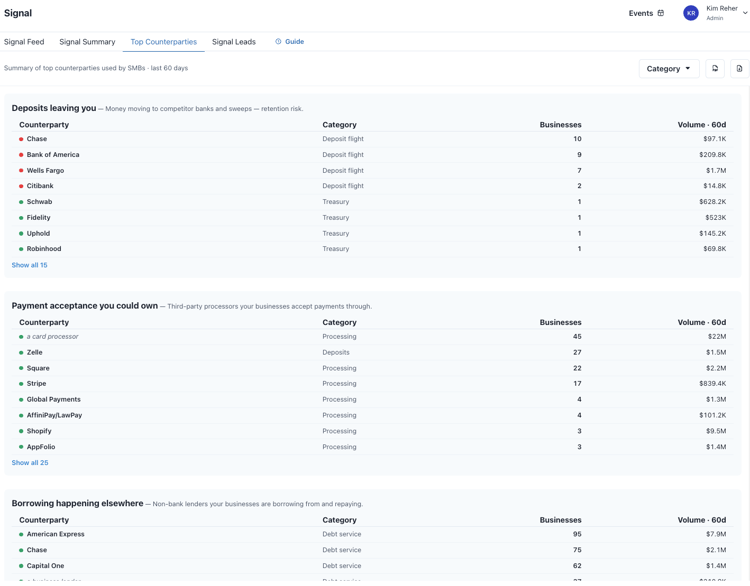
Top Counterparties names the outside companies on the other side of your customers' transactions, sorted into five groups: deposits leaving to a competitor, payment acceptance you could bring in-house, borrowing happening elsewhere, operating vendors like payroll and accounting tools, and incoming relationships. Counterparties are ranked by how many customers transact with them, not by dollar volume. Unrecognized counterparties appear in gray italics with an asterisk.
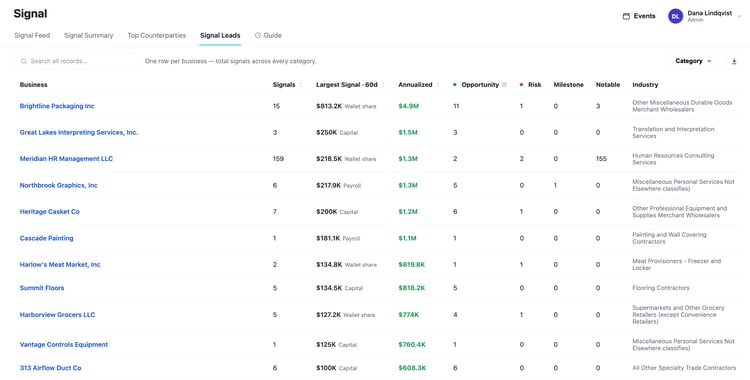
Signal Leads is the action list: one row per business, the categories it has signals in, its largest signal over the last 60 days, and the annualized size. Filter by category, then search by business name. The CSV export includes contact name, contact email, and external ID. Clicking a business name opens that business's SMB Detail page.
Signals also appear inside the SMB Detail View for all Hub user types, showing a rolling 90-day signal history for that business.
No configuration is required. Signal replaces the previous Signal Feed.
Who has access?
Signal is available automatically to financial institutions using the Autobooks Hub, the same availability as the original Signal Feed. The Signal tab in the left navigation is visible to FI Admin and Read-only users. The Signals list inside the SMB Detail View is visible to all Hub user types. No configuration is required.